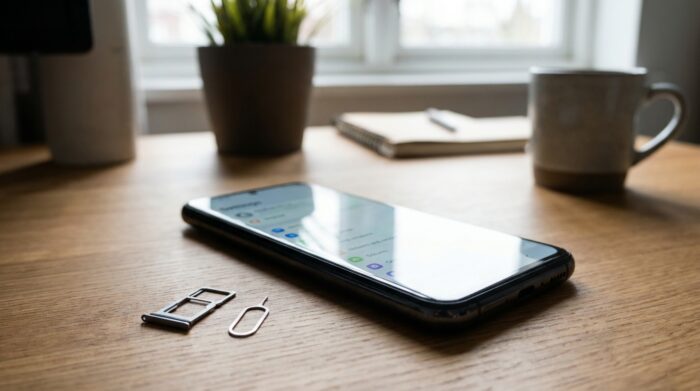
To activate an eSIM on a compatible Samsung Galaxy, open Settings > Connections > SIM manager and tap Add eSIM. Depending on your carrier, the profile will download automatically, install using a QR code, or be added with an activation code.
Before you start, confirm that your model and wireless plan support eSIM. Then you can choose which SIM to use for calls, messages, and data, if your phone and carrier support managing both lines.
Check whether your Galaxy and carrier support eSIM
Samsung España lists the Galaxy S20 series and later, as well as Galaxy Z Fold and Z Flip models, among its compatible devices. Availability may vary depending on the device’s country of origin and version. Some Galaxy A series models support eSIM only in specific regions.
Also check with your carrier to make sure it offers the service for your line and your model. Phone compatibility does not guarantee that the carrier will enable eSIM for your line. If you are unsure which setup method it supports, ask for instructions before starting the installation.
What do you need before adding an eSIM?
The usual path is Settings > Connections > SIM manager > Add eSIM. The names may differ depending on the model and software version, so look for the SIM management section if those exact labels do not appear.
Have the setup method provided by your carrier ready. It may offer a simple setup that downloads the plan to your phone, provide a QR code, or give you an activation code to enter manually. Not all carriers offer the same options.
If Add eSIM does not appear, first check that your model and region are compatible. You should also confirm with your carrier that the service is available for your line. Samsung notes that screens and options may vary by device, software, and carrier.
How do you install an eSIM step by step?
Open Settings, go to Connections, and select SIM manager. Tap Add eSIM. If your phone searches for a compatible plan, follow the on-screen instructions to download it. When your carrier supports this setup, the profile can be downloaded and activated through the guided process.
To install it with a QR code, get the code from your carrier. In Add eSIM, select Scan QR code and point the camera at the code you received. Then follow the steps shown on your Galaxy to download and activate the profile.
If your carrier gave you an activation code, go back to Add eSIM and choose the option to enter it manually. Type in the code and follow your phone’s instructions. The option’s label may vary by software, but it is part of the process for adding an eSIM.
Samsung España summarizes the options as simple setup, scanning a QR code, or entering the details manually. The method available to you depends on the options your carrier provides. If a code does not work or the expected plan does not appear, check with your carrier to confirm the instructions for your line.
Choose the SIM for calls, messages, and data
After activating the profile, return to SIM manager to review your lines. You can turn the physical SIM and eSIM on or off and select which one will be the primary SIM for calls, messages, and data.
Samsung United States says some Galaxy phones can use an eSIM alongside a physical SIM to have another line or phone number. This depends on device and carrier compatibility. Check which SIM is selected as primary if you want to change the default line.
If you share your phone between two lines, SIM manager is where you can check which ones are active and which one is used for each service. The exact options may depend on the model and software version, so your phone’s screen may not match these instructions word for word.
Frequently asked questions
Which Samsung Galaxy phones support eSIM?
Samsung España lists the Galaxy S20 series and later, as well as Galaxy Z Fold and Z Flip models. Compatibility may vary by country and device version, and some Galaxy A phones support eSIM only in specific regions.
Can you activate an eSIM without a QR code?
Yes. If your carrier offers simple setup, your phone can search for and download the plan from Add eSIM. You can also manually enter an activation code provided by your carrier.
Can I keep my physical SIM active alongside my eSIM?
Some Galaxy phones let you use both lines at once, if the device and carrier are compatible. In SIM manager, you can turn each one on or off and choose the primary line.
What should I do if I can’t find the Add eSIM option?
Names and options may vary by model, software version, and carrier. Check your device’s regional compatibility and ask your carrier about service for your line.