Samsung DeX is available on select Galaxy S, Note, and Fold phones, as well as certain Galaxy tablets. You can connect a compatible device to a display with a USB-C to HDMI adapter or wirelessly over Miracast. Depending on your setup, you can add a keyboard and mouse via Bluetooth or USB.
First, check whether your exact model supports the connection type you want to use. For a wired connection, you need a compatible adapter or DeX cable and an available HDMI port on the display. For a wireless connection, the TV or monitor must support screen mirroring over Miracast.
Which Galaxy devices are compatible with DeX?
Samsung lists compatible devices from several Galaxy families. They include Galaxy S series phones starting with the S8, models from the Note8 through the Note20, and select foldables. The Galaxy A90 5G is also listed. Compatible tablets include the Tab S4, Tab S5e, the Tab S6 through Tab S11 series, and the Tab Active Pro and Active3.
Support varies by model and connection type. Samsung publishes separate information for HDMI output, wireless DeX, and DeX mode directly on the tablet. For example, according to Samsung Germany, the Z Flip7 FE supports neither an HDMI connection nor a wireless connection to a TV or monitor.
Before setting up DeX, check the compatibility list for your specific model. Being part of the Galaxy S or Fold family does not mean every connection type is supported.
How do you connect DeX to a monitor with a cable?
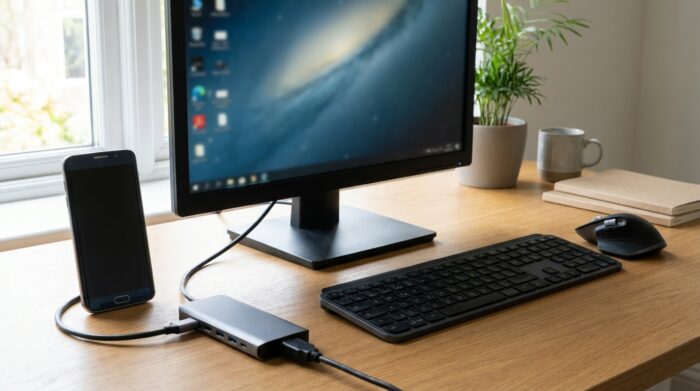
Connect the Galaxy device to a USB-C to HDMI adapter or DeX cable, then plug the HDMI end into the monitor or TV. Select the HDMI input used by the cable on the display. DeX may start automatically or appear on the Galaxy device for you to confirm, depending on the model.
For a wired setup, Samsung Deutschland lists an HDMI adapter, DeX Station, or DeX Pad as possible connection options. The right accessory depends on the model. Before buying, check whether it is compatible with your Galaxy device.
Some tablets can start DeX directly on their own touchscreen. No external display is needed: open Quick Settings and tap the DeX icon. Tablets with the relevant support can also connect by cable or wirelessly.
How does a wireless connection work?
The TV or monitor must support screen mirroring over Miracast. On the Galaxy device, open Quick Settings, turn on DeX, and select “DeX on TV or monitor.” Tap the display you want in the list, then tap “Start now.” If prompted, also approve the connection request on the display.
Samsung recommends a smart TV from 2019 or later for a wireless connection. According to Samsung, performance can depend on the device specifications and Wi-Fi environment. A busy network can affect the connection. Miracast and wireless DeX support also vary by model.
How do you connect a keyboard and mouse?
With a direct connection through a DeX cable or HDMI adapter, you can pair a keyboard and mouse with the Galaxy device over Bluetooth. Open Bluetooth settings from Quick Settings and select the devices once they appear in pairing mode. According to Samsung Support, wired keyboards and mice do not work with the DeX cable.
With a DeX Station or DeX Pad, you can connect wired input devices to the available ports. For wireless DeX, you can instead connect a keyboard and mouse to the TV. On supported phones, you can also use the smartphone as a touchpad. On tablets, you can control DeX with the touchscreen, S Pen, or keyboard cover.
If no keyboard is connected, you can use the Galaxy device’s on-screen keyboard to enter text. The right connection option depends on whether you use DeX with a cable, a docking station, or wirelessly.
Frequently asked questions
Does every Galaxy device support DeX?
No. DeX is available only on select Galaxy S, Note, and Fold models, as well as certain tablets. Even on compatible devices, supported connection types can vary.
Can I use Samsung DeX without an HDMI cable?
Yes, if your Galaxy model supports wireless DeX and the TV or monitor supports Miracast. Select the display using the DeX icon in Quick Settings.
Can a Galaxy tablet run DeX without an external monitor?
Some tablets support DeX directly on their own display. Whether your model can do this depends on its specific capabilities.
Can I connect a keyboard and mouse with the DeX cable?
Samsung lists Bluetooth as an option for connecting a keyboard and mouse when using a direct cable connection. According to Samsung Support, wired keyboards and mice do not work with the DeX cable.