If a Samsung Galaxy won’t connect to Bluetooth headphones, first check pairing mode and the battery level. If the headphones were connected before, remove the saved device entry and pair them again. Resetting connections is worth considering only if these steps don’t help.
Check pairing mode and battery level first
A Galaxy can’t detect Bluetooth headphones if they aren’t in pairing mode. How you activate this mode depends on the headphone model. For other Bluetooth headphones, follow the instructions for the specific model.
For Galaxy Buds, Samsung Österreich recommends these steps:
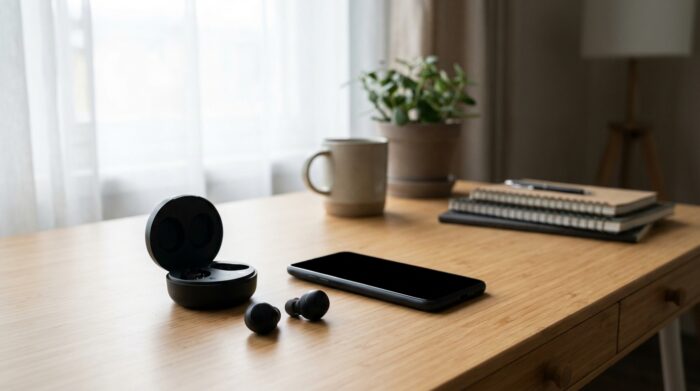
- Galaxy Buds3 and Buds3 Pro: Place the earbuds in the open charging case and hold the pairing button for more than three seconds.
- Galaxy Buds2 and Buds2 Pro: Place both earbuds in the open case and hold them simultaneously for more than three seconds.
- Galaxy Buds, Buds+, Buds Live, and Buds Pro: Wear both earbuds and hold their touchpads simultaneously for more than three seconds.
Check that the headphones have enough charge. Samsung Deutschland notes that enabling power-saving mode on a Galaxy phone can affect Bluetooth earbuds. Turn it off while troubleshooting, then check the connection again.
How do you pair the headphones manually?
Once the headphones are in pairing mode, open Settings > Connections > Bluetooth on your Galaxy. Select the headphones from the list of available devices and tap “Pair.” Confirm the connection if your phone prompts you.
For Galaxy Buds, you can also use the Galaxy Wearable app, according to Samsung Deutschland. Open the device list, add a device, and select the Buds from the available devices. Then follow the steps shown and confirm the pairing request.
Menu names and screen layouts may vary depending on your Galaxy model and software version. If the headphones don’t appear in the list, check again that pairing mode is active. A device that’s not in pairing mode can’t be detected by your Galaxy.
Remove an old pairing entry
If the connection worked before, remove the saved device entry and set up the pairing again. Open Settings > Connections > Bluetooth and tap the gear icon next to the headphones. Select “Unpair,” put the headphones back in pairing mode, and connect them as a new device.
Restarting the earbuds may also help with Galaxy Buds. Place them in the charging case and wait at least seven seconds before taking them out. According to Samsung, they should then reconnect to your phone automatically. If the case battery is empty, connect it to a charger first.
Check distance, obstructions, and software
Samsung lists a range of up to 10 meters for Galaxy Buds. The actual distance may vary depending on the environment. Walls and electronic devices can interfere with the connection. Move the devices closer together for the connection test and remove any possible obstructions between them.
Restart both your Galaxy and the headphones. Samsung Österreich explains: “Temporary software issues can prevent Bluetooth devices from being recognized properly.” For Galaxy Buds, also check the Galaxy Wearable app for a software update for the earbuds. Samsung recommends keeping the app up to date as well.
If the Buds don’t respond or won’t turn on properly, Samsung recommends checking their charge. Damage to the earbuds or charging port may also be a factor. If the problem persists, Samsung advises contacting an authorized service center.
Reset connections only as a last step
If pairing again and restarting don’t help, open Settings > General management > Reset > Reset Wi-Fi and Bluetooth settings on your Galaxy. Confirm the action, then set up the connection again.
Before resetting, consider the consequences: saved Bluetooth, Wi-Fi, and other connection information will be deleted. You may need to pair devices again. If the problem continues, Bluetooth diagnostics in Samsung Members can check whether Bluetooth is working properly on your Galaxy. Samsung Members must be installed to use this feature.
Frequently asked questions
Why can’t my Galaxy detect Bluetooth headphones?
A common reason is that the headphones aren’t in pairing mode. Also check their battery level, the distance between the devices, and possible obstructions such as walls or electronic devices.
How do I delete an old Bluetooth connection?
Open Bluetooth settings, tap the gear icon next to the headphones, and select “Unpair.” Then put the headphones back in pairing mode and pair them again.
What happens when I reset Wi-Fi and Bluetooth settings?
Saved Bluetooth, Wi-Fi, and other connection information will be deleted. You may need to reconnect your devices.
How do I put Galaxy Buds in pairing mode?
The steps vary by model. For Buds3 and Buds3 Pro, hold the button on the open case for more than three seconds. For Buds2 and Buds2 Pro, hold both earbuds in the open case simultaneously for more than three seconds. For the older models listed above, wear both earbuds and hold their touchpads simultaneously for more than three seconds.