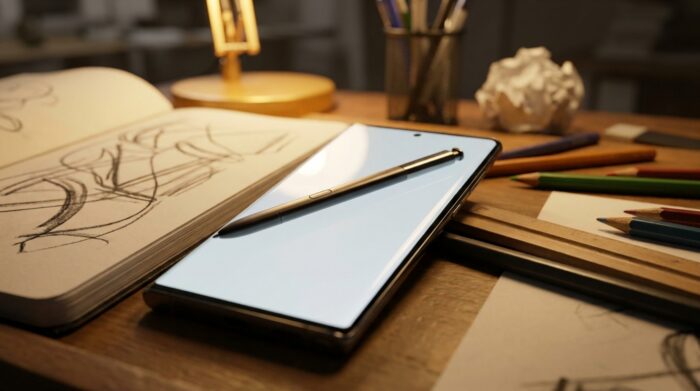
Samsung’s stylus is called the S Pen. Born with the first Galaxy Note in 2011, it is now stored in the body of the Galaxy S Ultra phones and supplied with most Galaxy Tab S tablets. It lets you write, draw, annotate a screenshot or cut out an area of the screen with a precision a finger cannot match.
Not every Galaxy recognizes it, and not every S Pen is equal: the S25 Ultra’s model has notably lost Bluetooth. Here is which devices are compatible, what the stylus can do today and how to replace it if you have lost it.
How the Samsung stylus works
The S Pen relies on Wacom’s digital stylus technology, known as electromagnetic resonance. The compatible display includes a special layer, the digitizer, which detects the stylus tip, its pressure and its hover, even before it touches the glass. To write and draw, the stylus needs no battery: it is powered by the field the display emits.
This is also why a “universal” stylus with a capacitive tip, sold for any phone, does not replace an S Pen: it imitates a finger, without pressure or hover, and triggers none of the Samsung stylus’s features.
Which Samsung phones are compatible with the S Pen?
| Family | Compatibility | Stylus holder |
|---|---|---|
| Galaxy Note | The whole series | Built into the body |
| Galaxy S21 Ultra | Yes, stylus sold separately | No slot |
| Galaxy S22 Ultra to S26 Ultra | Yes, stylus supplied | Built into the body |
| Galaxy Z Fold3 to Z Fold6 | Yes, dedicated stylus sold separately | Specific case |
| Galaxy Z Fold7 | No, the digitizer was removed | – |
| Galaxy Tab S (since the Tab S3, except the S5e) | Yes, often supplied | Depending on the model |
| Galaxy S (non-Ultra), Galaxy A | No | – |
Remember the simple rule: on a smartphone, only the Ultra models of the Galaxy S range (since the S21 Ultra) and the older Notes accept the S Pen. A Galaxy S25, an S25+ or a Galaxy A56 does not have the necessary digitizer.
What the S Pen does on the Galaxy S25 Ultra
Pull the stylus out of its slot: the S Pen command menu opens on the screen. It gives access to the main tools.
- Quick notes, even with the screen off: pull out the stylus on the lock screen and write directly, without unlocking.
- Screen write: captures the displayed screen and lets you write or draw on it before saving or sharing it.
- Smart select: cuts out an area of the screen, extracts its text or creates an animated GIF from a video.
- Handwriting converted to text: in input fields, the stylus can replace the keyboard, with your writing turned into characters.
- Translation on hover: hover over a word with the tip and its translation appears.
- Galaxy AI features: circle an item on the screen to start a search, or turn a rough sketch into a more polished drawing.
The S25 Ultra also has a wider tip than the S22 to S24 Ultras, which changes the writing feel a little. To place the stylus among the phone’s other strengths (display, zoom, battery life), our page detailing everything the 2025 Ultra can do covers the subject.
The S25 Ultra’s S Pen no longer has Bluetooth: what changes
From the Galaxy Note9 to the S24 Ultra, the S Pen carried a small battery and a Bluetooth chip. They powered remote features, called Air actions: triggering the camera with a click, scrolling through a presentation, controlling video playback with a gesture in the air.
Samsung removed Bluetooth from the S25 Ultra’s stylus, explaining that fewer than 1% of users used these features. What disappears:
- triggering the camera remotely with the stylus button;
- gestures in the air (Air actions) to control apps;
- some app features tied to this connection.
What remains: writing, drawing, pressure, hover, the side button for on-screen shortcuts and all the menu commands. For most users, the difference is invisible. For those who took group photos by triggering with the stylus, it is a real loss: you will have to use the timer or voice command.
Replacing a lost or damaged S Pen
Choosing the right model
Each S Pen is designed for one device: its shape matches the phone’s slot and its tip matches the display’s digitizer. An S24 Ultra stylus is not necessarily the equivalent of the S25 Ultra’s, and a tablet’s stylus does not fit in a phone’s body. The safest option is to order the S Pen sold explicitly for your model, from Samsung or a reseller, checking the reference given on the product page.
Changing only the tip
A worn tip scratches or glides poorly, but it does not always justify replacing the whole stylus. Samsung sells replacement tips with a small pair of tweezers to remove the old one. Here again, check compatibility: tips are not the same from one generation to another.
Adding a second stylus
On models that accept it, nothing prevents you from using a larger stylus, more comfortable for long drawing or note-taking sessions. It simply cannot be stored in the phone. Some styluses from other brands compatible with Wacom technology also work for writing, but without the button or all the menu features. Before buying one, check that the manufacturer explicitly mentions compatibility with Galaxy Ultras: the words “touch stylus” alone almost always describe a capacitive model, of no use here.
Phone or tablet: where the stylus is most useful
On a Galaxy S Ultra, the S Pen is mostly for quick gestures: jotting down a number with the screen off, signing a document, annotating a screenshot before sending it, cutting out a passage from a page. The S25 Ultra’s 6.9-inch display is big enough to write a few lines comfortably, and the stylus is always there, stored in the body.
For long note-taking sessions, drawing or annotating whole documents, a Galaxy Tab S tablet is better suited: the surface is much larger and the supplied stylus is often thicker, so more comfortable in the hand over time. Many users combine the two: the phone for notes on the go, the tablet for deeper work, with notes carried from one device to the other thanks to Samsung account sync.
If the stylus is the main reason for your purchase, think about how you will use it before choosing between an Ultra and a tablet paired with a cheaper smartphone.
The S Pen no longer responds: what to check
- Remove the case or film: a screen protector that is too thick or a case with magnets can disturb detection.
- Check the tip: worn or pushed in, it is no longer detected properly.
- Restart the phone: a simple restart fixes many temporary malfunctions.
- Check the settings: in Settings, Advanced features, S Pen section, check that the expected options are turned on.
If the stylus stays dead despite all this, the problem may come from the display’s digitizer, which is a matter for after-sales service.
Samsung stylus FAQ
Does the S Pen work on a Galaxy S25 or an S25+?
No. In the S25 range, only the S25 Ultra has the compatible display and the built-in slot.
Does the S25 Ultra’s stylus have a battery?
No. Without Bluetooth, it no longer needs charging: the display powers it for writing and drawing.
Can you still take a photo with the stylus?
Not remotely on the S25 Ultra, for lack of Bluetooth. The timer or voice command take over.
Does the Galaxy Z Fold7 accept the S Pen?
No. Samsung removed the digitizer needed for the stylus to make the device thinner. The Z Fold3 to Z Fold6 remain compatible with a dedicated stylus.